Table of Contents
ToggleEffortless Smart Lock Setup and Voice Controls with Google HomeIntegrating Smart Locks with Google Home: Complete Setup and Voice Command Guide
Integrating smart locks with Google Home offers a seamless way to enhance your home security and convenience. This comprehensive guide will walk you through the setup process, essential voice commands, and troubleshooting tips for smart locks compatible with Google Home. Many homeowners face challenges in managing their home security systems effectively, especially when it comes to integrating new technology. Smart locks provide a solution by allowing you to control access to your home remotely, ensuring peace of mind. In this article, we will cover the setup process, essential voice commands, compatible smart locks for 2024, troubleshooting common issues, the benefits of professional installation, and best practices for enhancing security.
How Do I Set Up My Smart Lock with Google Home?
Setting up your smart lock with Google Home involves a few straightforward steps that ensure your device is connected and ready for use. This process typically includes connecting your smart lock to your Wi-Fi network and linking it to your Google Home app. By following these steps, you can easily manage your smart lock through voice commands and the Google Home interface.
Step-by-Step Guide to Connecting Smart Locks to Google Assistant
- Install the Smart Lock: Ensure your smart lock is properly installed according to the manufacturer’s instructions.
- Download the App: Install the smart lock’s companion app on your smartphone.
- Create an Account: Sign up or log in to your account within the app.
- Connect to Wi-Fi: Follow the app’s instructions to connect your smart lock to your home Wi-Fi network.
- Link to Google Home: Open the Google Home app, tap on “Add,” then “Set up device,” and select “Works with Google.” Find your smart lock’s brand and follow the prompts to link your account.
By completing these steps, your smart lock will be integrated with Google Assistant, allowing for voice control and remote management.
Linking Smart Lock Accounts and Assigning Rooms in Google Home
Once your smart lock is connected, you can manage it through the Google Home app. To link your smart lock account and assign rooms:
- Open Google Home App: Navigate to the “Home” tab.
- Select Devices: Tap on the smart lock you want to manage.
- Assign a Room: Choose the room where the smart lock is located to help organize your devices.
- Customize Settings: Adjust settings such as notifications and access permissions for family members.
This organization helps streamline your smart home experience, making it easier to control multiple devices.
What Are the Essential Google Home Voice Commands for Smart Locks?
Using voice commands with your smart lock enhances convenience and security. Google Assistant allows you to control your smart lock hands-free, making it easier to manage access to your home.
Common Locking and Unlocking Commands with Google Assistant
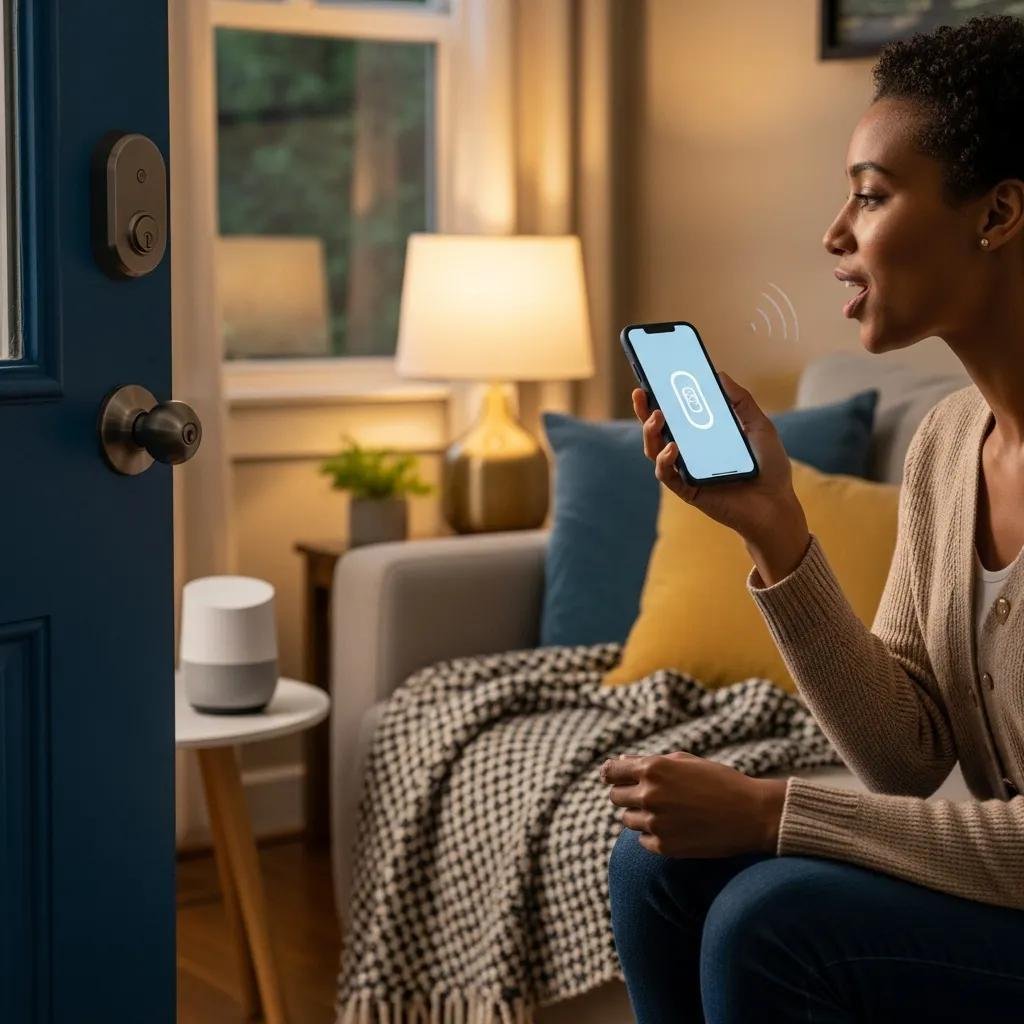
Here are some common voice commands you can use with your smart lock:
- “Hey Google, lock the front door.”
- “Hey Google, unlock the back door.”
- “Hey Google, is the front door locked?”
Using Security PINs and Voice Authentication for Smart Locks
For added security, many smart locks support voice authentication and PIN codes. To set this up:
- Enable Voice Authentication: In the smart lock app, enable voice recognition features if supported.
- Set a Security PIN: Create a unique PIN that you can use to unlock your smart lock via voice command.
- Test the Setup: Use commands like “Hey Google, unlock the front door with my PIN” to ensure everything is functioning correctly.
Note that voice authentication and PIN code support vary by smart lock brand and model, and some features may require additional setup or may not be supported by Google Assistant directly.
This feature enhances security by ensuring that only authorized users can unlock the door.
Which Smart Locks Are Compatible with Google Home in 2024?
As smart home technology evolves, several smart locks are designed to work seamlessly with Google Home. Understanding which locks are compatible can help you make an informed decision when upgrading your home security.
Top Smart Lock Brands Supporting Google Assistant Integration
Here are some of the top smart lock brands that support Google Assistant integration:
| Brand | Model | Features |
|---|---|---|
| August | Smart Lock Pro | Remote access, auto-lock, and unlock features |
| Schlage | Encode | Built-in Wi-Fi, no hub required |
| Yale | Assure Lock SL | Keyless entry, touchscreen keypad |
Understanding the Matter Standard and Its Impact on Compatibility
The Matter standard is a new connectivity protocol designed to improve compatibility among smart home devices. This standard aims to simplify the integration of various smart devices, including smart locks, with platforms like Google Home. As more devices adopt the Matter standard, homeowners can expect greater interoperability and ease of use across their smart home systems.
How Can I Troubleshoot Common Google Home Smart Lock Issues?
Even with the best technology, issues can arise. Knowing how to troubleshoot common problems can save you time and frustration.
Resolving Connectivity and App Sync Problems
If your smart lock is not responding to Google Assistant commands, try these troubleshooting steps:
- Check Wi-Fi Connection: Ensure your smart lock is connected to your home Wi-Fi network.
- Restart Devices: Restart both your smart lock and the Google Home device.
- Re-link Accounts: If issues persist, unlink and then re-link your smart lock account in the Google Home app.
These steps can often resolve connectivity issues and restore functionality.
Battery and Hardware Troubleshooting Tips
If your smart lock is not functioning properly, consider the following:
- Check Battery Levels: Ensure the batteries in your smart lock are charged or replaced if necessary.
- Inspect Hardware: Look for any physical obstructions or damage to the lock mechanism.
- Firmware Updates: Check for any firmware updates in the smart lock app that may improve performance.
Regular maintenance can help prevent issues and ensure your smart lock operates smoothly.
Why Choose Professional Smart Lock Installation and Support in Charlotte, NC?
While DIY installation is an option, professional installation offers several advantages that can enhance your smart lock experience.
Benefits of Expert Installation for Google Home Smart Locks
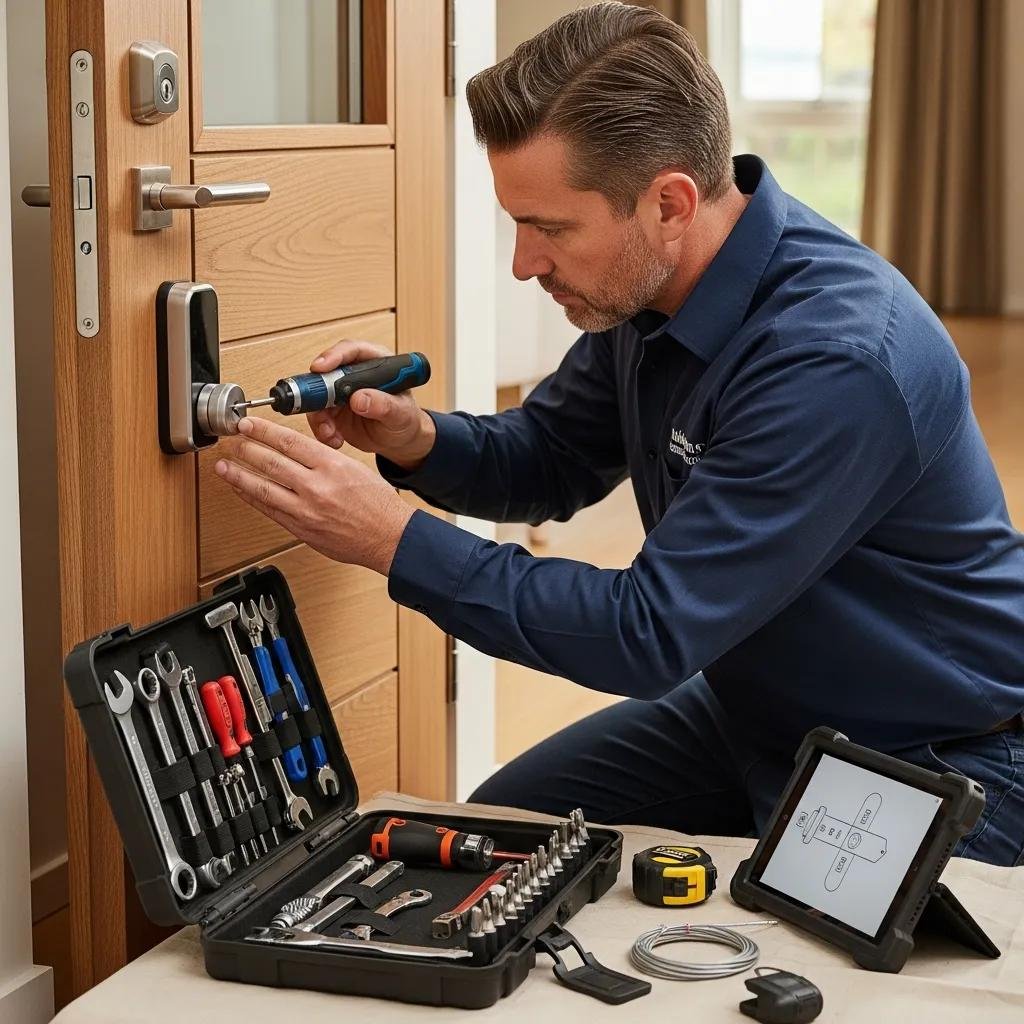
- Expertise: Professionals have the knowledge to install smart locks correctly, ensuring optimal performance.
- Time-Saving: Hiring a professional can save you time and effort, allowing you to focus on other tasks.
- Error Reduction: Professionals can help avoid common installation mistakes that could compromise security.
These benefits make professional installation a worthwhile investment for homeowners looking to enhance their security systems.
My Locksmith Express’s 24/7 Local Services and Security Consultation
My Locksmith Express, based in Charlotte, NC, specializes in smart lock installation and support. They offer 24/7 emergency locksmith services, ensuring that you have access to professional help whenever you need it. Their expertise in smart lock systems, including installation, repair, and troubleshooting, makes them a reliable choice for homeowners looking to enhance their security.
How Do I Enhance Smart Lock Security When Using Google Home?
Enhancing the security of your smart lock is crucial for protecting your home. Implementing best practices can help ensure that your smart lock remains secure.
Best Practices for PIN Codes and Multi-Factor Authentication
- Use Strong PINs: Create complex PIN codes that are difficult to guess.
- Enable Multi-Factor Authentication: If available, enable multi-factor authentication for added security.
- Regularly Update Codes: Change your PIN codes periodically to maintain security.
These practices can significantly enhance the security of your smart lock and protect your home from unauthorized access.
Protecting Privacy with Voice Control and Biometric Options
- Limit Voice Access: Ensure that only trusted individuals have access to voice commands for your smart lock.
- Utilize Biometric Features: If your smart lock supports biometric authentication, use it for added security.
- Educate Users: Make sure all users understand how to use the smart lock securely.
By following these guidelines, you can enhance the security of your smart lock while enjoying the convenience of voice control.